Figma manual: from the file to the results
Prepare the file, import, build the task, test and publish.
6 minutes read
On this page
The complete path of a Figma prototype test, in the order it happens. The images use Aurora Pay, a demo app.
Purpose
Make named, ordered screens available to visual blocks. This manual brings everything that comes after into one page: building the task, checking the path, testing, publishing and reading the results.
When to use it
When testing an existing prototype or images without a Figma file. Read it before your first Figma test and come back when a task does not end where it should.
Before you start
- Permission to the Figma file or prepared images
- An editable study
Prepare the file in Figma
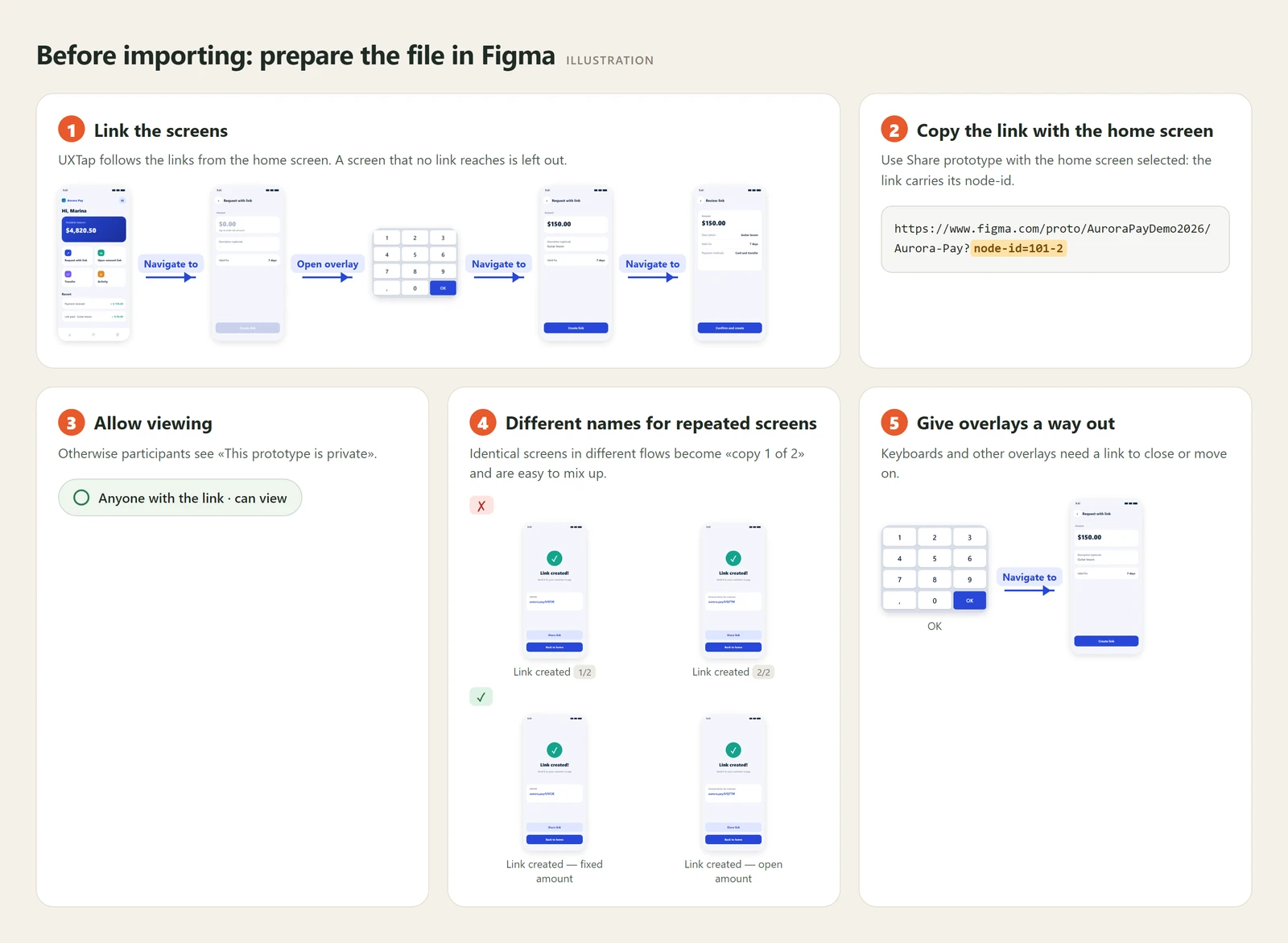
- Link the screens. UXTap follows Figma navigation interactions (Navigate to, Open overlay and Swap overlay) from the home screen. Frames that no link reaches are left out.
- Copy the right link. Use the Share prototype link with the home screen
node-id. A page link, without a chosen screen, is rejected. - Allow viewing. Set the file to «Anyone with the link can view». If Figma asks for a login or password, participants see «This prototype is private» and the task does not happen.
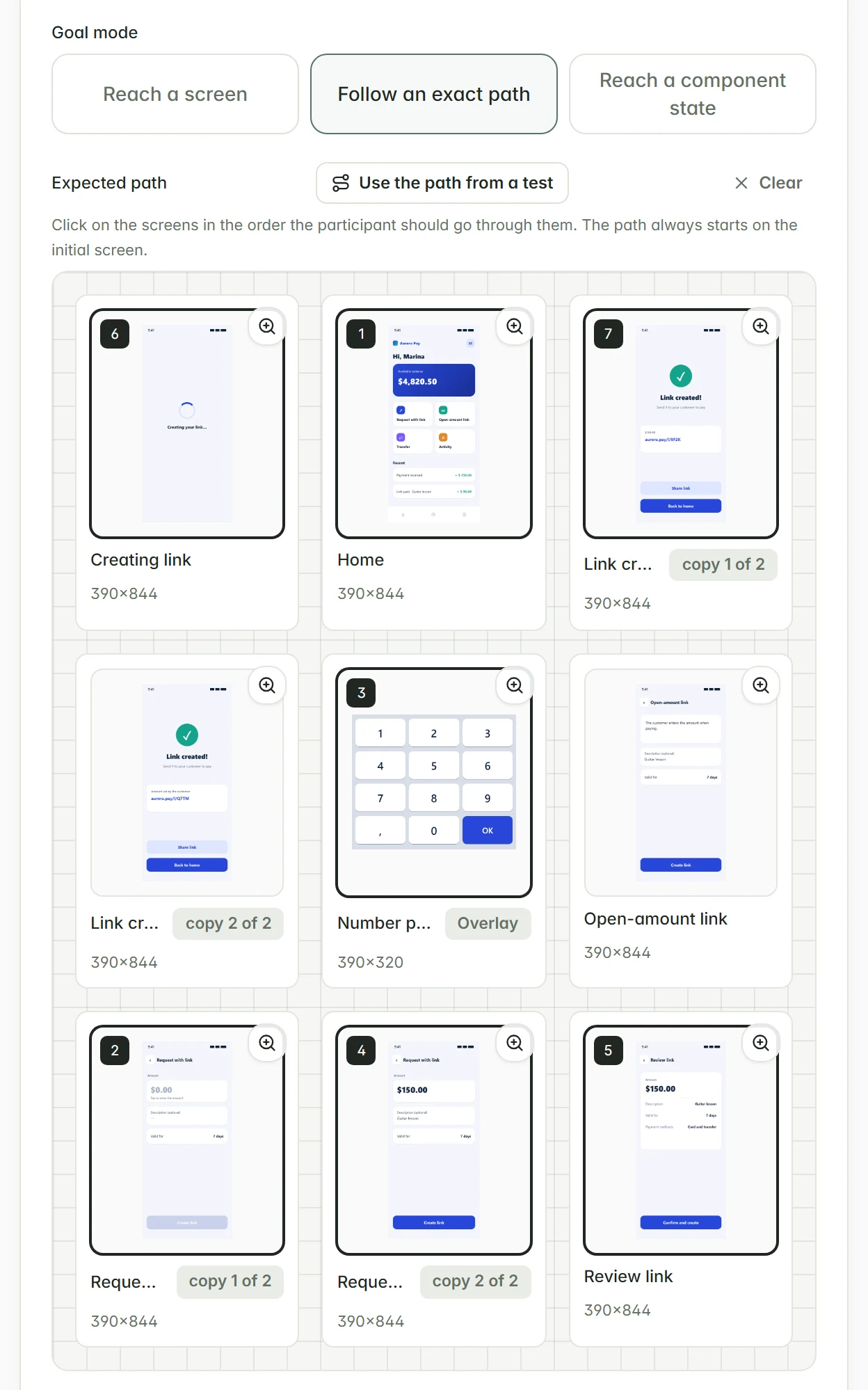
- Give similar screens different names. When each flow has its own copy of the same screen, include the flow in the name (for example «Link created — fixed amount»). Frames with the same name and size show as «copy 1 of 6» and are easy to mix up.
- Close overlays. Keyboards and other overlays need a link to close or move on; without one, the participant gets stuck.
- Up to 80 screens. Each import accepts up to 80 screens; split larger flows.
Example
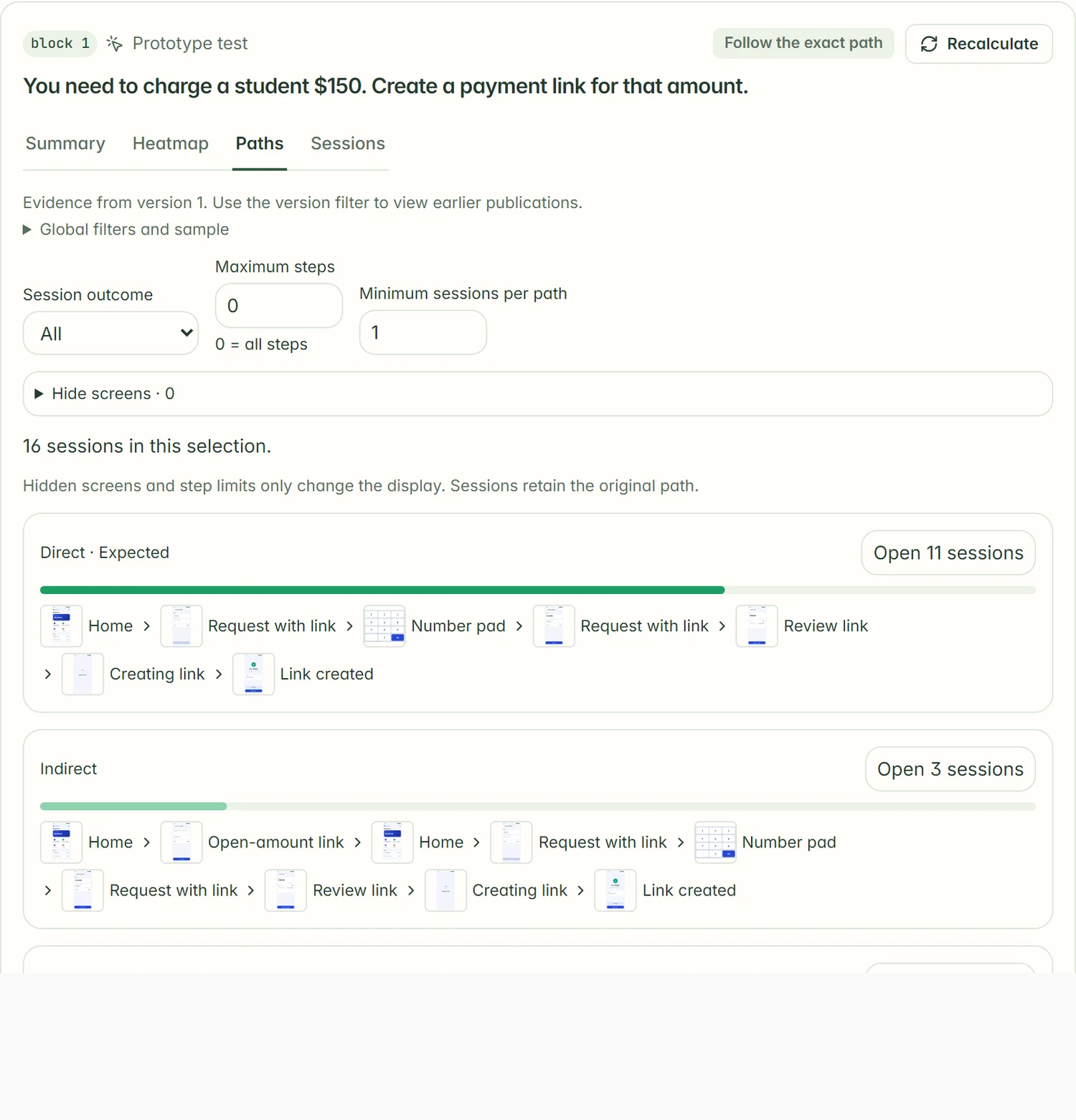
Task: «You need to charge a student $150. Create a payment link for that amount». Home screen: Home. Goal: the «Link created» screen of the same flow, not its copy in the «Open-amount link» flow.
Step by step
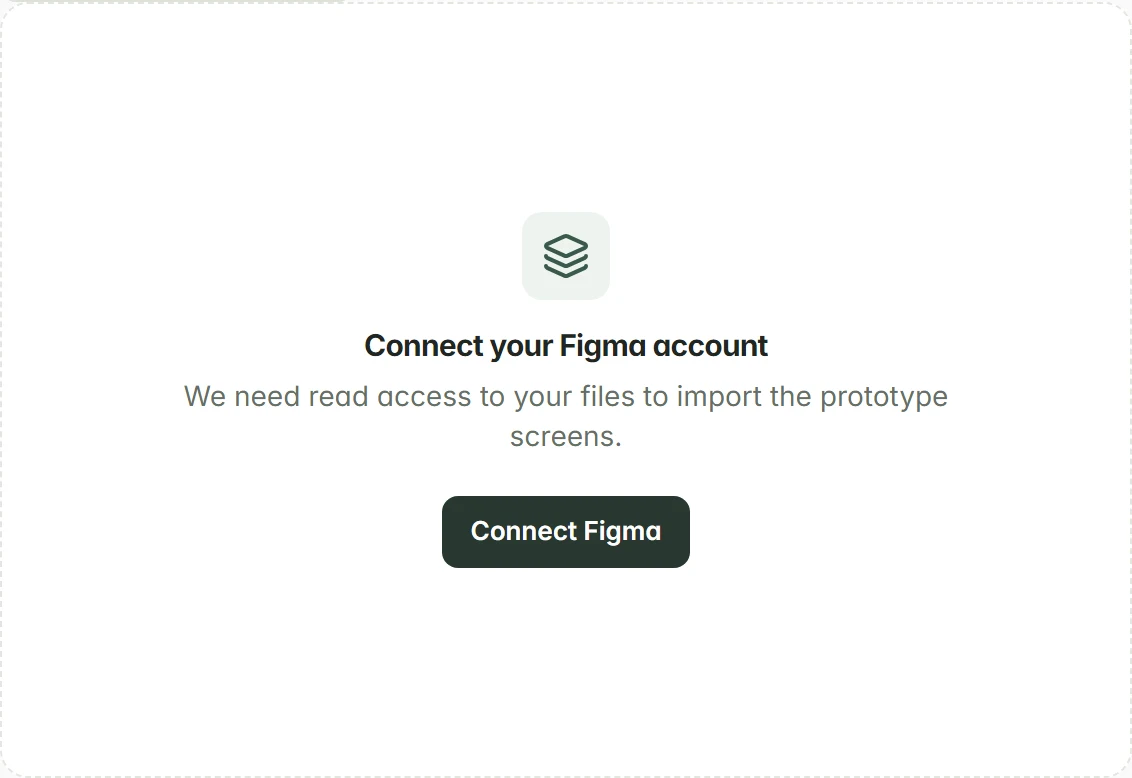
- Connect Figma. Open the study, go to the Prototype tab and click Connect Figma. Authorize file reading; when you return, «Logged in as» shows your user name.
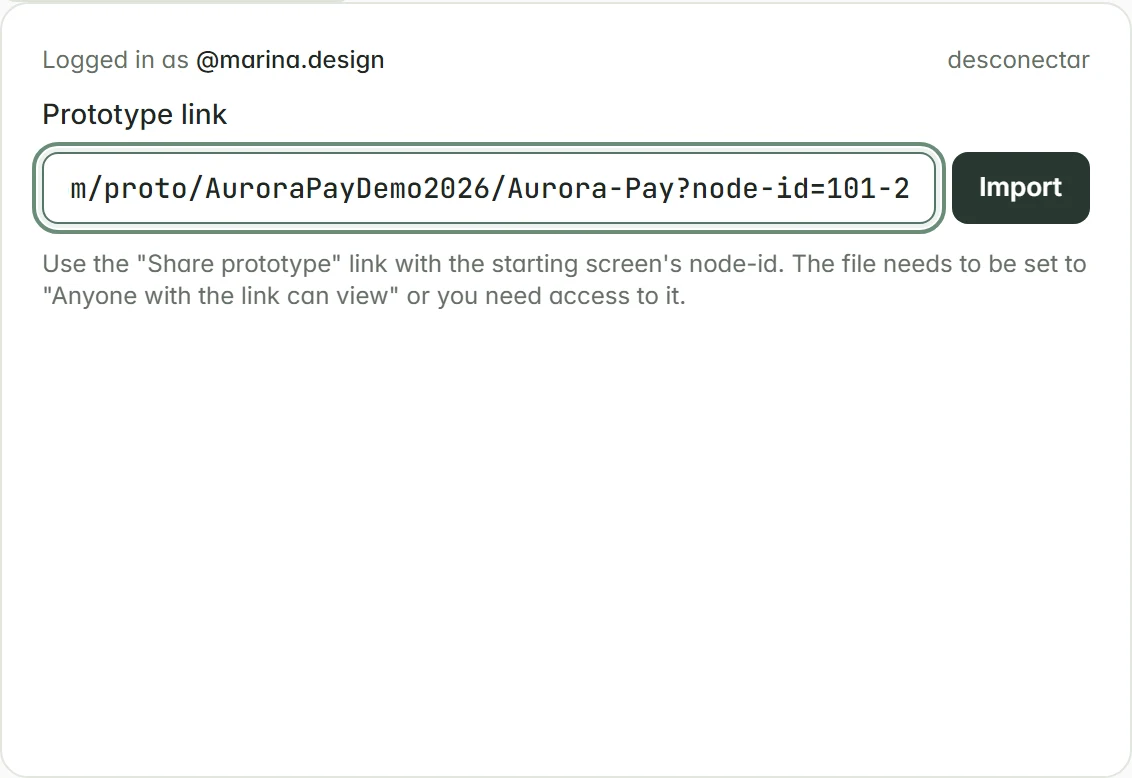
- Import the flow. Paste the link into the Prototype link field and click Import. Follow the screen count until the Done label. If an error shows up, the message says what to fix: file access, a page link or the screen limit.
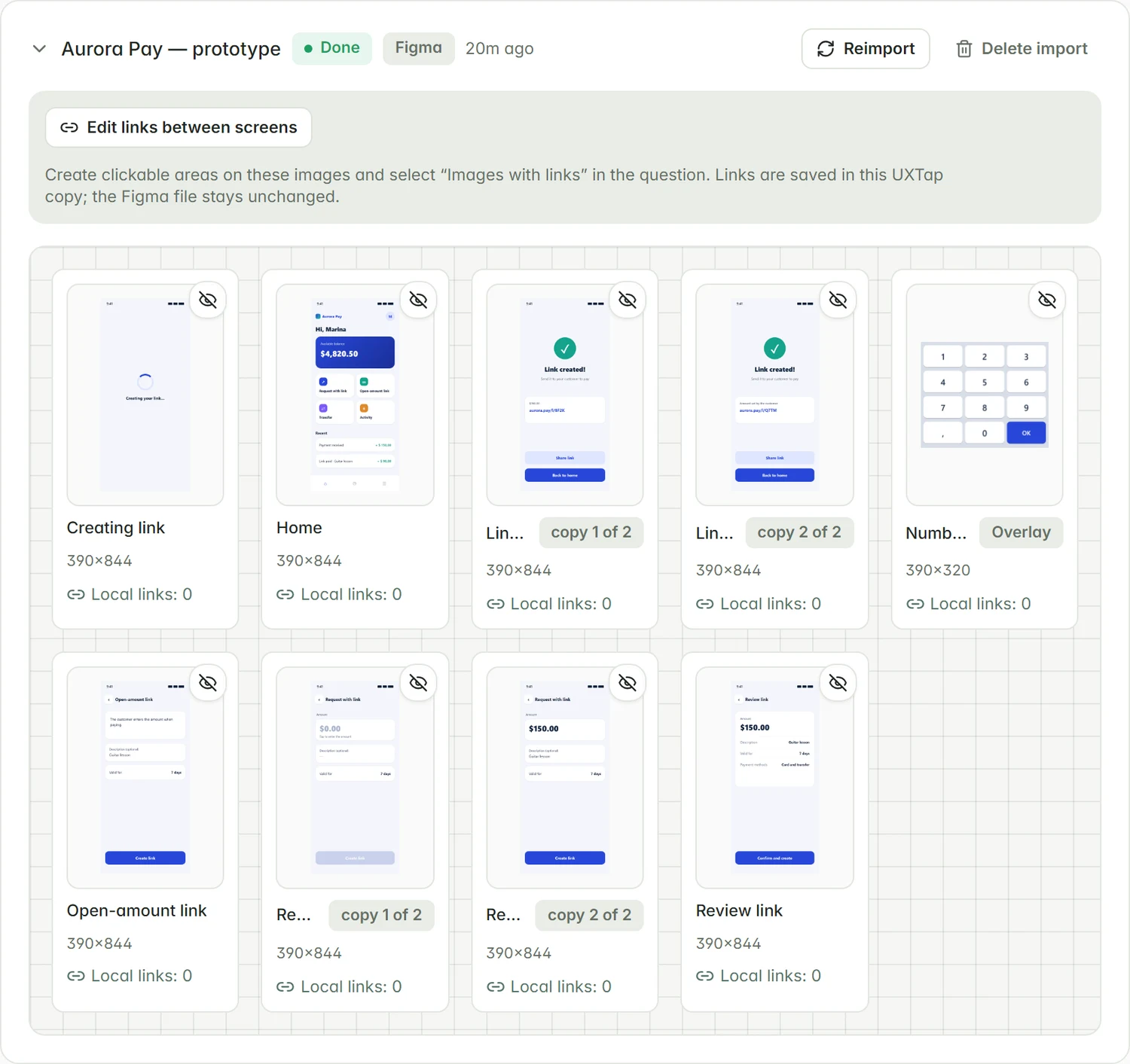
- Review the gallery. Check that the home screen and the final screen are in the set. Click a thumbnail to zoom in and use the eye to hide what is not part of the test; hiding only organizes the gallery and pickers. The «copy i of n» label marks repeated frames.
- Create the block. In Build, click Add block and choose Prototype test. Write the Task instruction, choose Interactive Figma under Display and select the imported prototype.
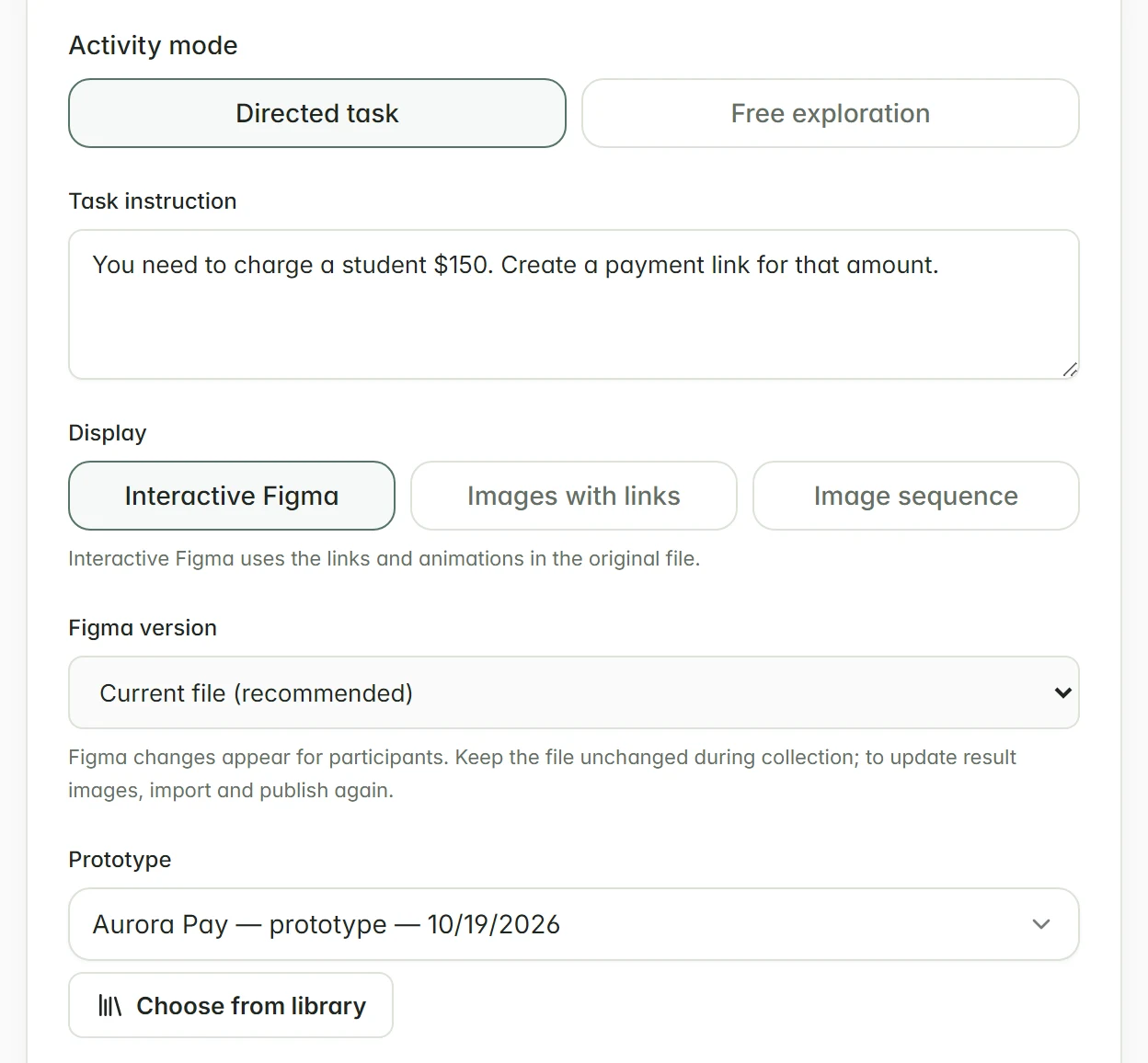
- Set the start and goal. Choose the Home screen and the Goal mode: Reach a screen (mark the Goal screens) or Follow an exact path (mark the Expected path, in order). The task ends only on the chosen screen: an identical copy from another flow does not count.
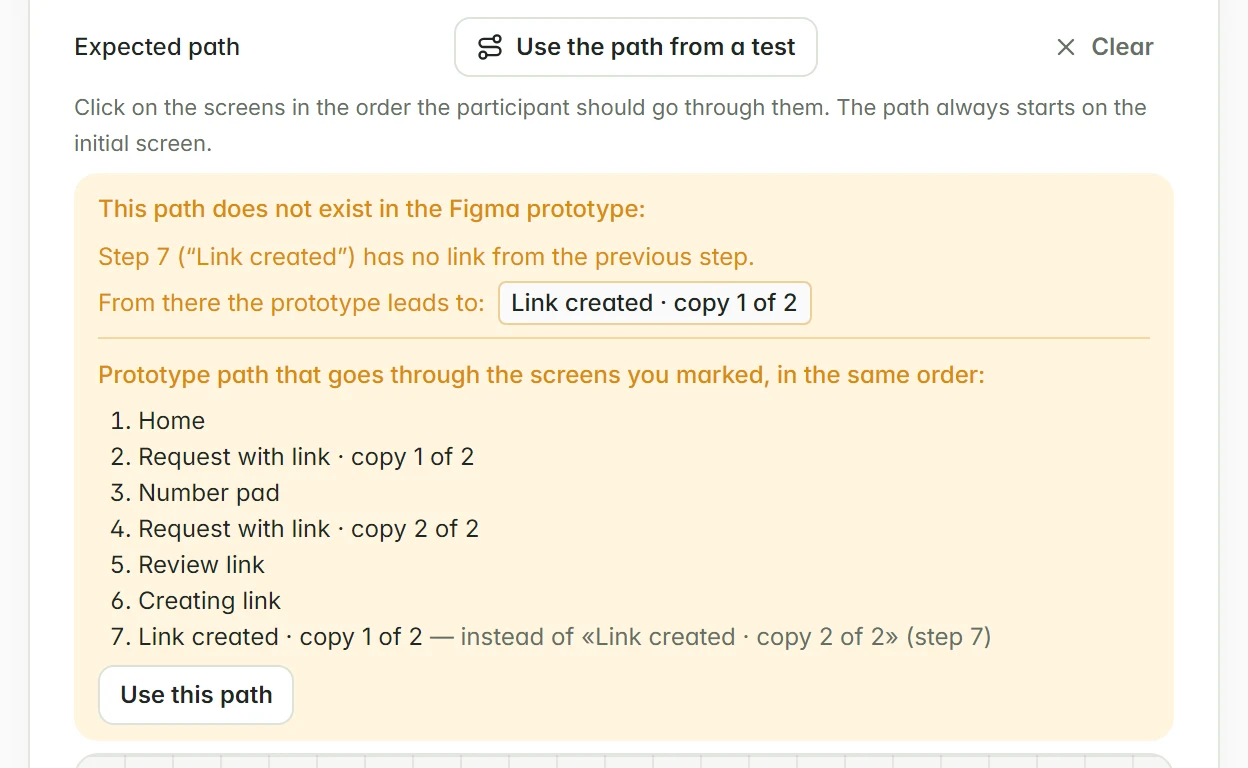
- Check the path against Figma. If a step has no link from the previous one, the editor warns «This path does not exist in the Figma prototype:» and shows where the prototype goes from there. Swap the step for the suggested screen or click Use this path, which proposes the real path through the screens you marked and also adjusts the home screen. Nothing changes until you click.
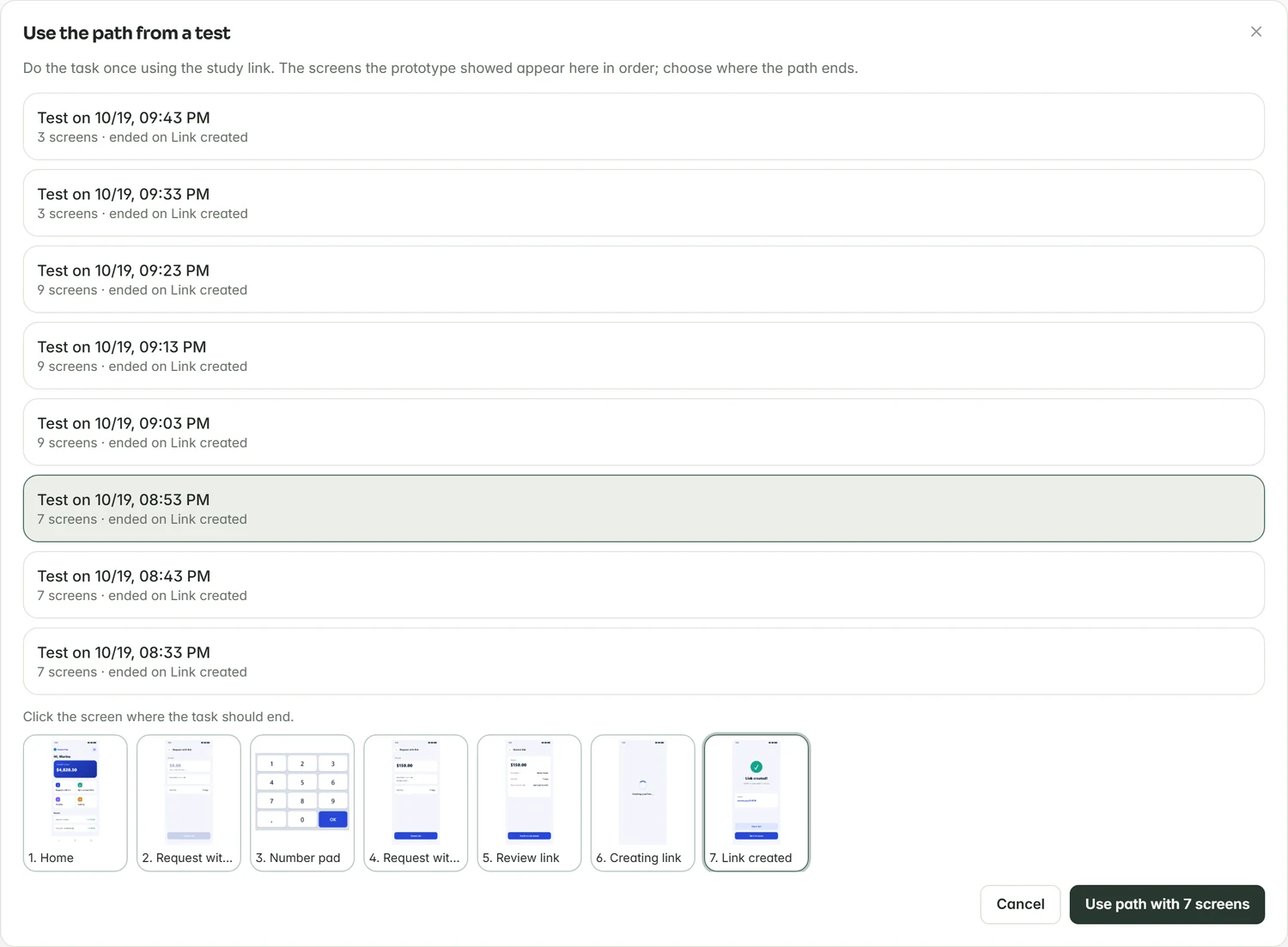
- Use the path from a test. Another safe way to build the path: do the task once through the published link, return to the block and click Use the path from a test. Pick the test, click the screen where the task should end and confirm.
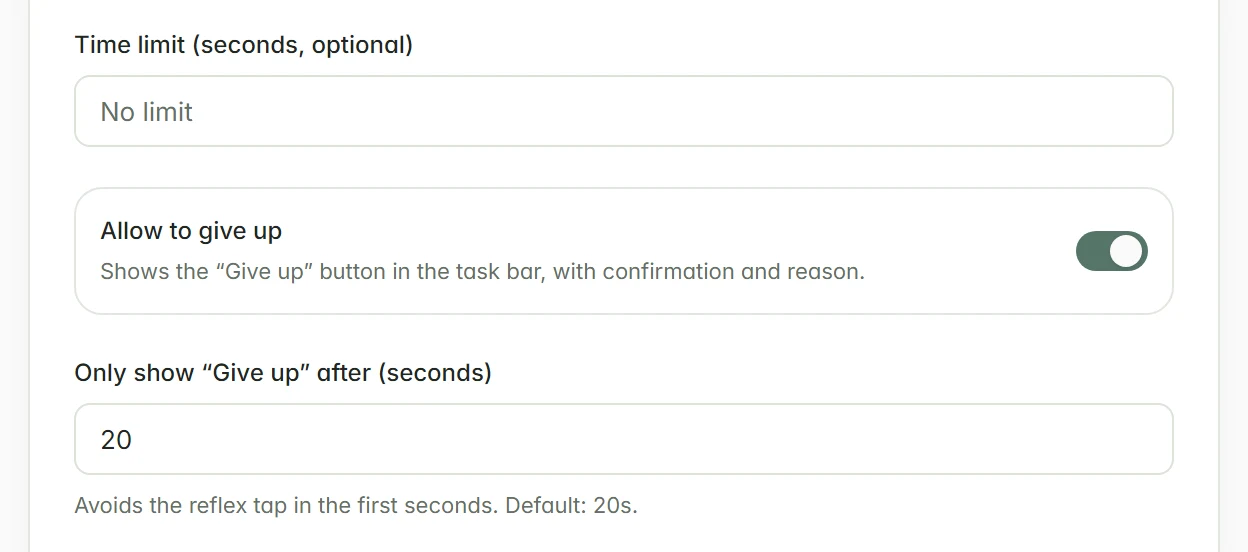
- Provide a way out. Keep Allow to give up on or fill in Time limit (seconds, optional). Without either one the study does not publish, so nobody gets stuck in the task.
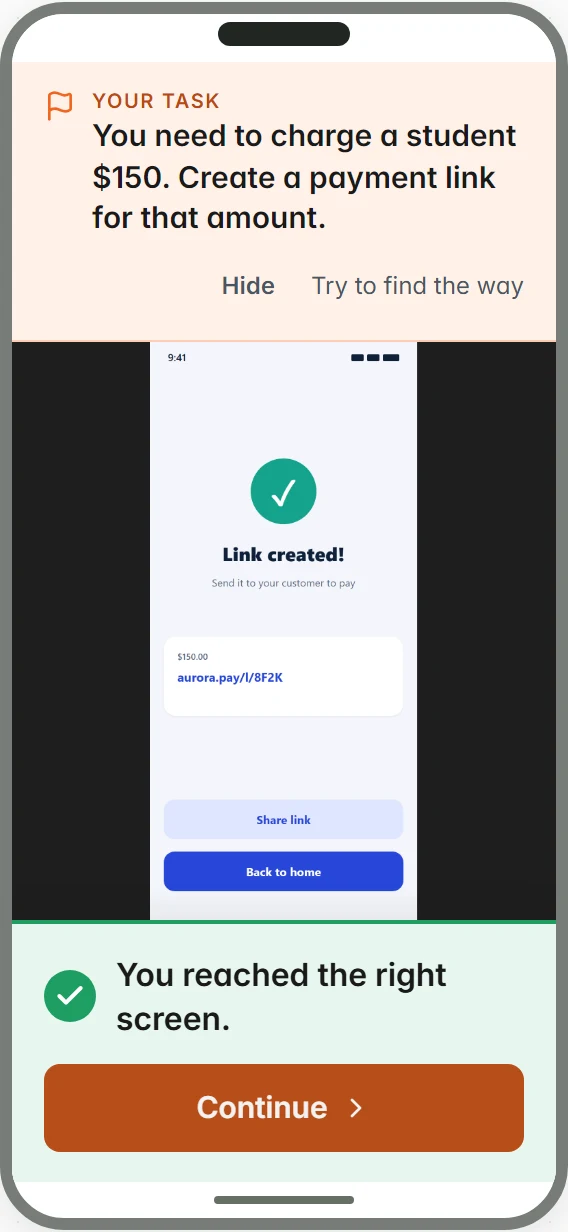
- Test the task. Preview in new tab runs the real prototype, on desktop or mobile, without saving answers. On reaching the goal, «You reached the right screen.» appears with the Continue button. Study preview checks the logic with a simulated answer.
- Publish. Click Publish. Each publication creates a new version, and answers stay linked to the version in which they were collected.
- Bring in Figma changes. With Figma version set to Current file (recommended), what you edit in Figma shows up for participants: avoid editing the file while collecting. To update the result images, click Reimport in the Prototype tab, pick the new import in the block Prototype field, redo the start, goal and path, and publish again.
How to read the result
- Screens available in the Prototype tab
- Import available to visual blocks
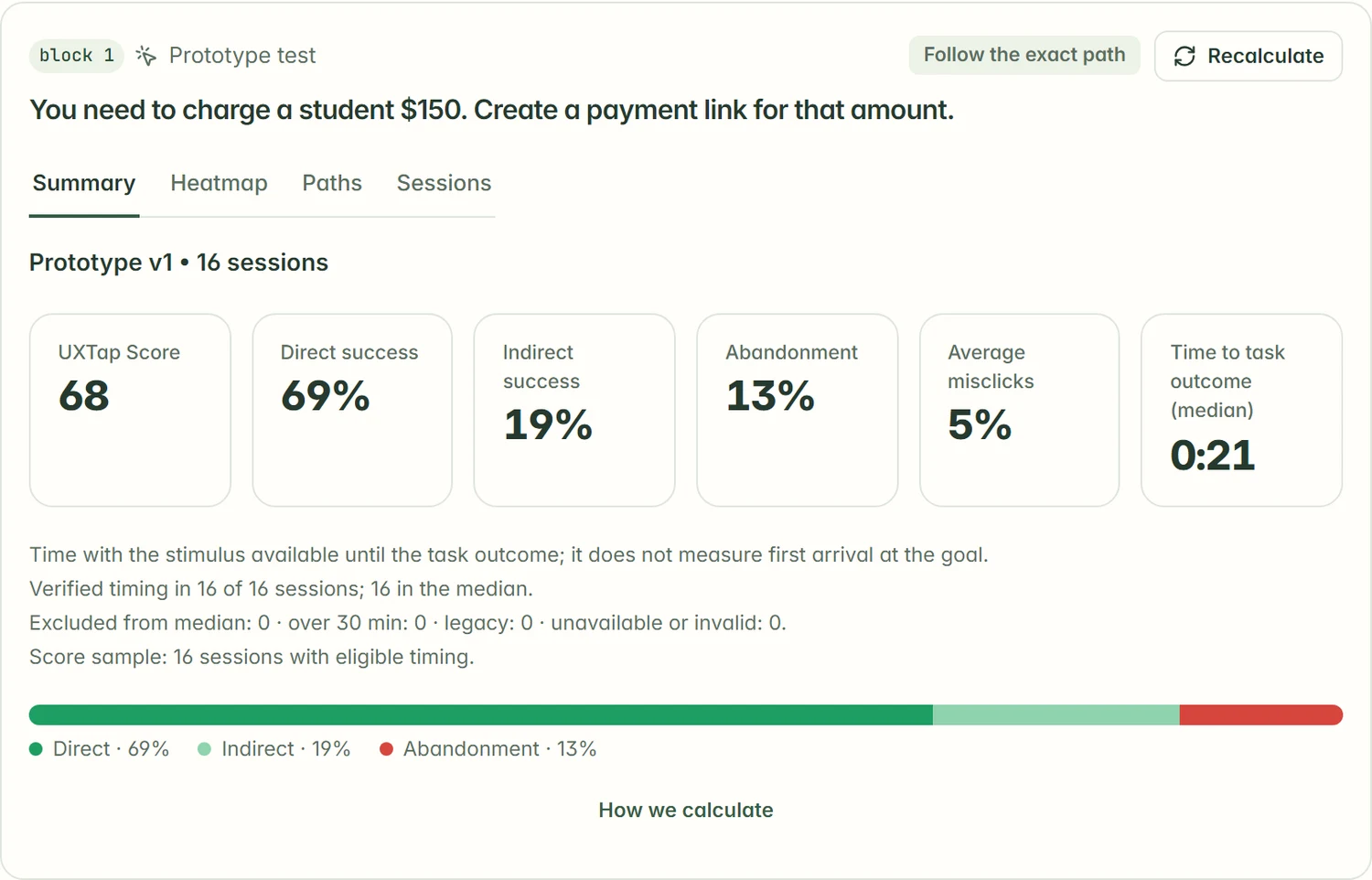
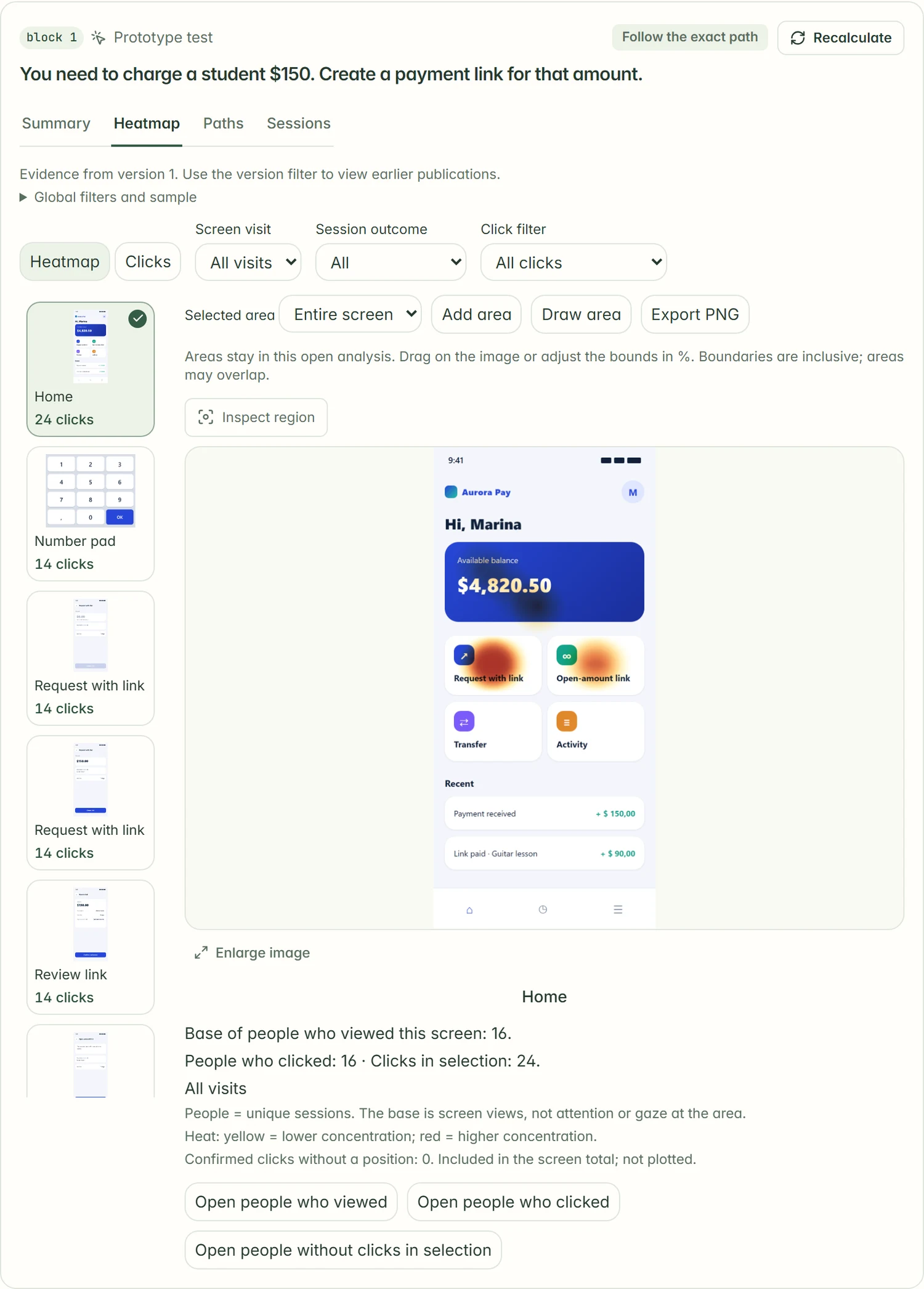
- In Results, the task card has the Summary, Heatmap, Paths and Sessions tabs. The Summary shows the UXTap Score, Direct success, Indirect success, Abandonment and time to task outcome.
- Direct success means reaching the goal through the expected path (or an alternative one); through another route, it is indirect.
- Abandonment includes people who clicked Give up and people who ran out of time. A prototype that did not open counts as incomplete and stays out of the averages.
Cautions and limitations
- Use the Figma presentation link for the correct flow.
- Figma limits can block a new import; a compatible existing import may be reused.
- Pasting the same link again reuses the copy already imported. To fetch the new version of the file, use Reimport.
- Changing the prototype of a block clears the home screen, goals and path; check everything before publishing.
- The path check depends on links read from Figma. If the import connection was removed, reimport to get the check back.
- The phone frame in the preview is illustrative; also test on a real device through the published link, knowing that this participation is real.
Continue with the interactive guide
Bring in Figma screens or images
Related guides
Is something missing? Write to contato@paineltap.com.br.